

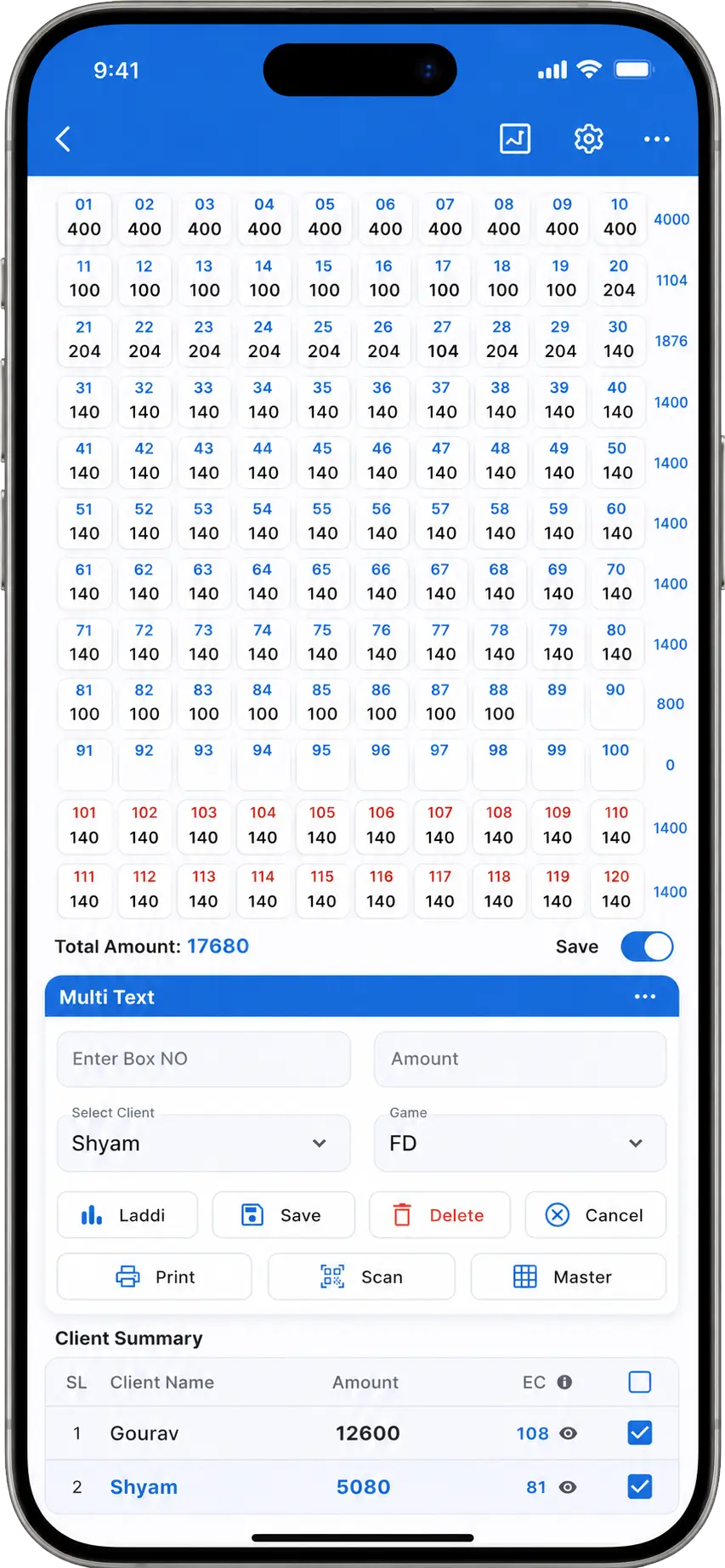
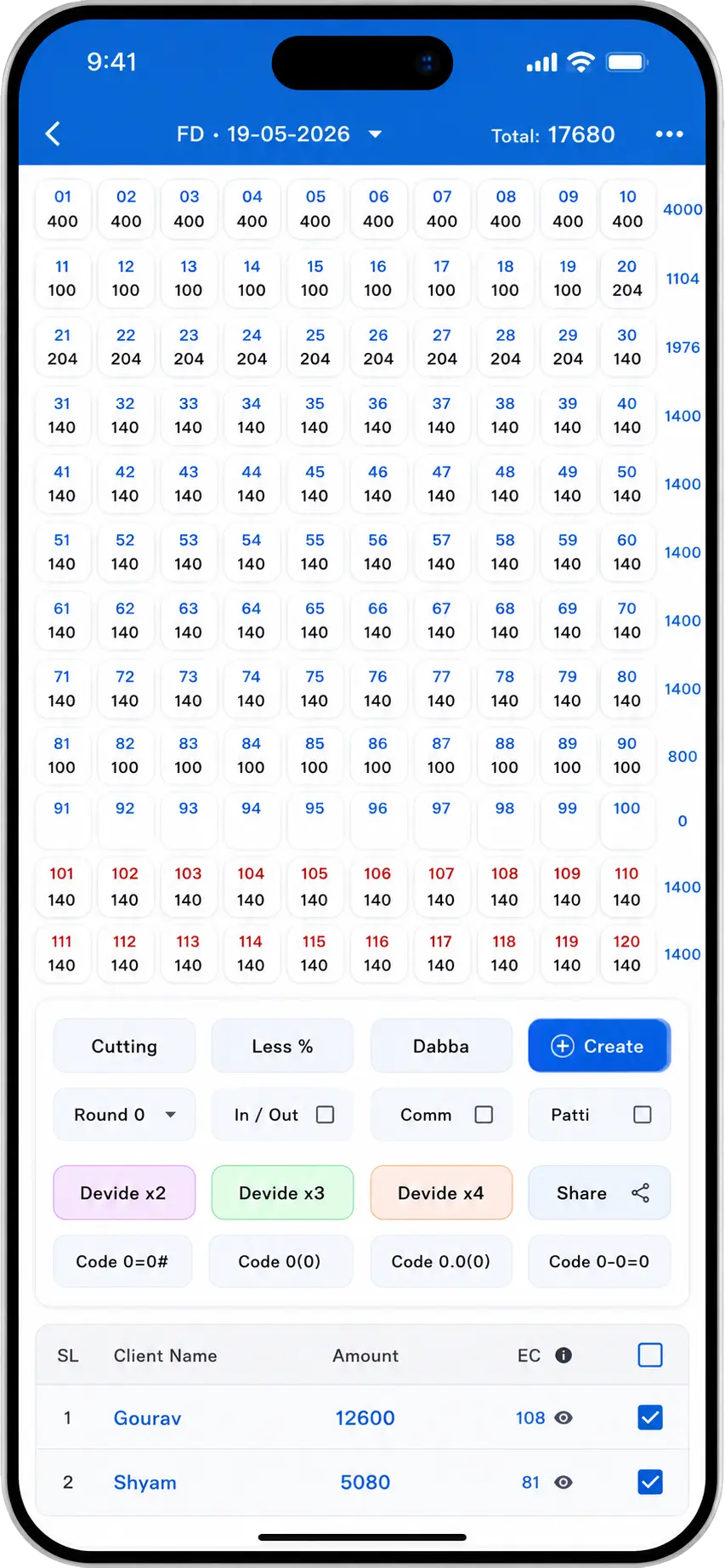
Fast Sheet Entry. Enter numbers quickly with smart grids, bulk paste, laddi, crossing, and instant calculations.
Now on iPhone & iPad
Jantri Software for Apple.
Jantri software for iPhone & iPad — fast calculations, smart sheet entry, AI-powered formatting, cloud backup, and the trusted GoSheet khaiwal software experience for iOS.
Trending on App Store
Cloud backup
Face ID ready
Dark mode
Premium plans
And so much more.
Powerful tools for daily jantri work — designed to feel at home on iPhone and iPad.
Backup & Device Transfer. Change phone anytime and restore your sheets, clients, and settings in minutes.
Secure Login & App Lock. Keep your data protected with secure sign-in, fingerprint lock, and safe sessions.
Smart AI Formatting. Paste messy WhatsApp or Telegram text and let AI clean and format it automatically.
Master Sheet & Accounts. View client totals, profit/loss, divide sheets, generate codes, and manage accounts easily.
Print & Share Anywhere. Share sheets, screenshots, QR codes, and print directly with Bluetooth thermal printers.
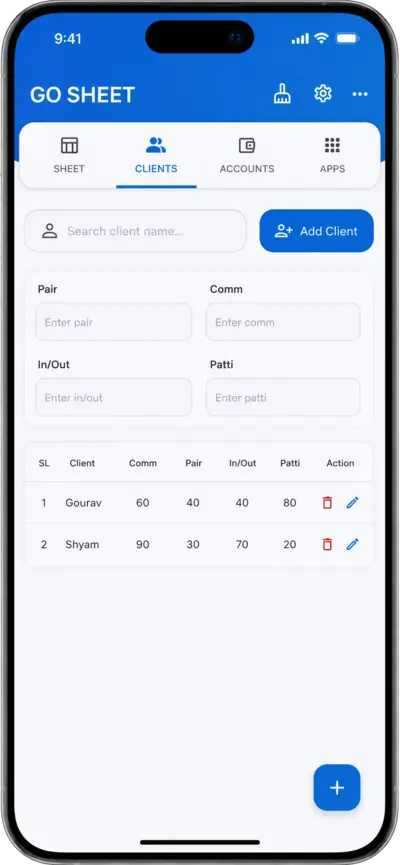
Easy Client Management. Add clients manually or from contacts, manage commissions, and track client activity.
Dark & Light Mode. Use the app comfortably day or night with automatic theme switching support.
Basic & Premium Plans. Unlock advanced tools, AI features, backups, and long-term access with Premium plans.
Real-time Notifications. Get instant updates for backups, subscriptions, account activity, and important alerts.
Works Across Devices. Sync your work across Android, desktop, and future device support without losing progress.
Help & Video Support. Built-in guides, tutorials, and quick support whenever you need assistance.
Get the highlights.
GoSheet on iPhone and iPad — fast jantri entry, smart AI formatting, client management, and secure cloud backup in one trusted app.
Questions & answers.
Quick help for creating your ID, using GoSheet on iPhone or iPad, renewing your plan, and more.
How do I create an account or ID?
Open GoSheet and choose sign up or register. Enter your mobile number, verify the OTP, then set a password or PIN. Your GoSheet ID is created and linked to that number — use it to sign in on this device or after reinstalling the app.
You can also tap Get ID in the header on this page to share your details and get guided help on WhatsApp.
How do I use the app?
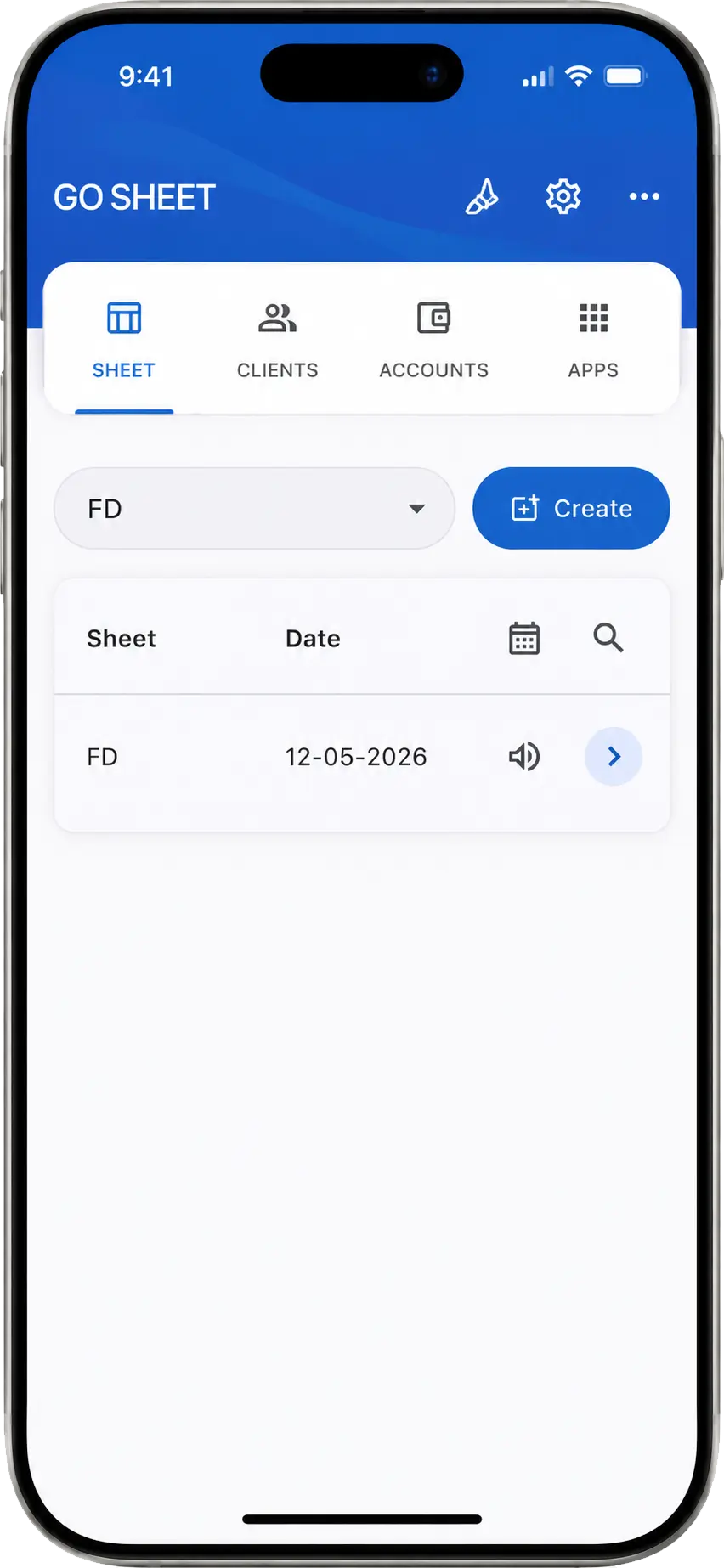
After login, use the bottom tabs to move between Sheet, Clients, Accounts, and other tools. Create or open a sheet, enter jantri numbers in the grid, use bulk paste or AI formatting for long lists, and save or print when done. Add clients from the Clients section to track commissions and open sheets faster.
In-app help and tutorials cover grids, laddi, crossing, backup, and printer setup — check the menu or settings for guides and videos.
How do I renew my ID?
When your plan is near expiry, open Accounts or subscription from the app menu. Choose your plan (for example 30 days or 1 year) and complete payment through the App Store. After a successful purchase, your ID stays active — you may need to restart the app or pull to refresh if the date does not update immediately.
If payment succeeded but access did not update, contact support with your registered mobile and a screenshot of the receipt.
How do I back up or move to a new iPhone?
Enable cloud backup from settings so your sheets, clients, and preferences stay safe. On a new iPhone or iPad, install GoSheet, sign in with the same ID, and restore from backup when prompted.
Where can I get help?
Use in-app support options where available, or email gosheet.in@gmail.com with your registered mobile and a short description of the issue. Screenshots help us resolve problems faster.
Does GoSheet work offline?
Many sheet and client features work without internet once you are logged in. Backup, sync, subscription checks, and some updates need a connection. Reconnect when you can so changes can sync safely.